Posts

Set-ADPhoto

Image
Set-ADPhoto Set Active Directory Photo for Users By Michael J. Thomas I have been very busy lately, so I'm going to keep this one simple. How to set a photo for active directory user with PowerShell. The more built out version will be posted at a later time. function Set-ADPhoto { [ CmdletBinding ()] param( [ string ] $UserName , [ string ] $File ) $Photo =[ System.IO.File ]::ReadAllBytes( $File ) Set-ADUser $UserName -Replace @{thumbnailphoto= $Photo } }
Install-Fonts

Image
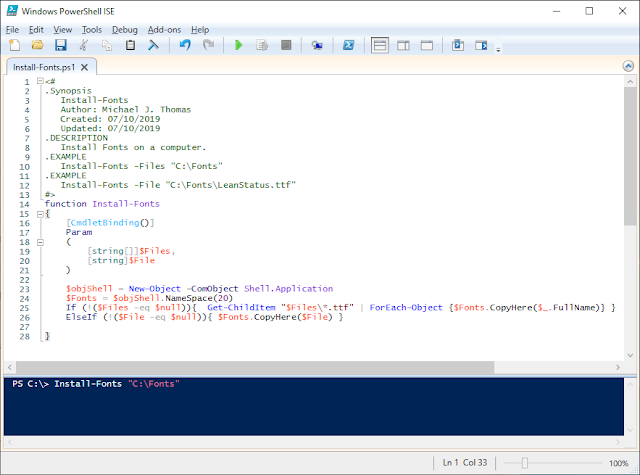
Install-Fonts Install Fonts on a Computer with PowerShell By Michael J. Thomas It has been a busy week for me and so I have not had much time write a script for this week. I started looking back at some of my old VBScripts and thought it would be fun to write a PowerShell version of Installing Fonts. I created a function called Install-Fonts.  It has two switch options with the current version of it. I have some more ideas I'm going to update this one soon but I'm limited on as of this writing. I hope you all enjoy this one for now. Select one file with the -File switch Install-Fonts -File "c:\Fonts\FontName.ttf" Select the whole folder with the -Files switch Install-Fonts -Files "c:\Fonts". Download Script from GitHub <# .Synopsis    Install-Fonts    Author: Michael J. Thomas    Created: 07/10/2019    Updated: 07/10/2019 .DESCRIPTION    Install Fonts on a computer. .EXAMPLE   ...

Invoke-Reprofile

Image
Invoke-Reprofile Fix Corrupted User's Profiles with PowerShell By Michael J. Thomas Troubleshooting a user's profile is sometimes hard to pin point out where the problem is and that is why a lot of us techs will use the technique of re-profiling the user's profile and copying just their data back. To do this process of re-profiling a user manually, I will demonstrate this process with a user account named Ed. I would do the following steps to fix his corrupted profile: Logoff Ed Login with an Admin Account Rename C:\Users\Ed to C:\Users\Ed.old  Edit the Registry HKLM:\Software\Microsoft\Windows NT\CurrentVersion\ProfileListNow\SID and find Ed's SID and rename it to the SID.old.  Logoff Admin Account Login Ed to Create a New Profile for him. Copy Ed's Data from Ed.Old Folder to his New User Profile. I automated the process by creating a PowerShell Script that can fix it remotely. The script renames the user's profile to user.old, backups the...

Keep All Network Connections Private ( Set-PrivateNetwork )

Image
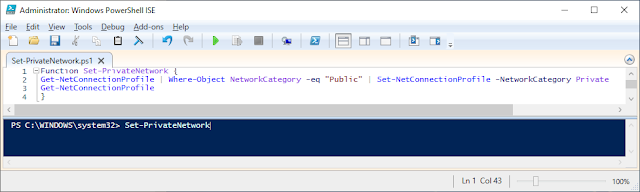
Keep All Network Connections Private with Set-PrivateNetwork by Michael J. Thomas Have you ever tried to configure WinRM and it complained that you have one of your networks set as public? Let's just keep this conversation private and get to the code already. The PowerShell command for switching all of your Public Networks to Private is the following: Get-NetConnectionProfile | Where-Object NetworkCategory -eq "Public" | ` Set-NetConnectionProfile -NetworkCategory Private After you enter the command then you can run the following to Enable WinRM:   WinRM QC -Q -Force Function Set-PrivateNetwork { Set-NetConnectionProfile | Where-Object NetworkCategory -eq "Public" | ` Set-NetConnectionProfile -NetworkCategory Private Get-NetConnectionProfile }

Invoke-Speak

Image
Invoke-Speak Speak with Microsoft Speech using PowerShell by Michael J. Thomas So, it's time again for a cool little script that you can use and have some fun with your co-workers. Warning, using this code  inappropriately can lead to disciplinary actions by your employer.  Code Wisely my Friends Download Script from GitHub <# .Synopsis    Invoke-Speak    Created by Michael J. Thomas    Date:    06/15/2019    Updated: 06/15/2019 .DESCRIPTION     Invoke-Speak allows you to speak to a remote computer with Microsoft Speach     Invoke-Speak -Words $Words -ComputerName $Computers -Speed (-10 to 10) Slow to Fast     Default Speed is 2.      .EXAMPLE    Invoke-Speak "Hello World!"    Invoke-Speak "Hello World! -ComputerName "Computer01", "Computer02" -Speed 2 #> function Invoke-Spea k { [cmdLetBinding()] Param( [str...

Get-ADUserBasicInfo

Image
Formatting Basic AD Information in the Output your Want Get-ADUserBasicInfo Function by Michael J. Thomas Here is an example of how you an put together a basic list of information that you want to find out about a user's account. <# .Synopsis    Get-ADUserBasicInfo .DESCRIPTION    Gets the basic information of the user. Including UserName, First Name, Last Name, Email Address,    O365,Exchange DB, Title, Enabled, LockedOut, LastLogonDate, User OU, Notes .EXAMPLE    Get-ADUserBasicInfo -UserName "PowerShellGuy" .EXAMPLE     Get-ADUserBasicInfo -UserName "PowerShellGuy","michael.thomas" #> function Get-ADUserBasicInfo{  [cmdletbinding()]  Param(  [string[]]$UserName   )   #$ErrorActionPreference= 'silentlycontinue'  Foreach ($User in $Username){  $O365 = If ((Get-AdUser $User -Properties targetAddress).targetAddress -ne $null) { If ((Get-ADUser $User -...

Remove-TempFiles

Image
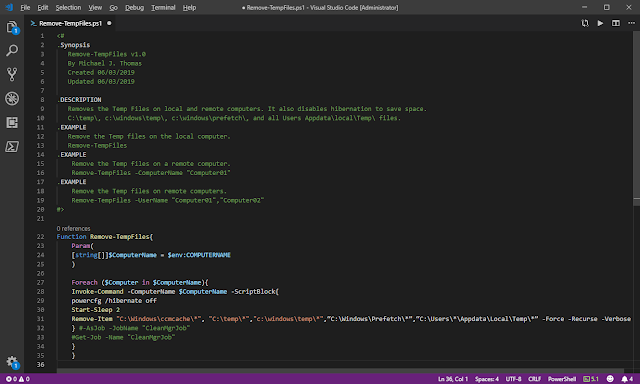
Have you ever had a user call in and say that they have run out of disk space? We tend to see that when computers are deployed with small hard drives. Here is a function that you may find handy to use for these issues. You can run it as a job by removing the comment #-Jobs. Remove Comment for Get-Job to get the job status.  <# .Synopsis    Remove-TempFiles v1.0    By Michael J. Thomas    Created 06/03/2019    Updated 06/03/2019      .DESCRIPTION    Removes the Temp Files on local and remote computers. It also disables hibernation to save space.     C:\temp\, c:\windows\temp\, c:\windows\prefetch\, and all Users Appdata\local\Temp\ files.  .EXAMPLE    Remove the Temp files on the local computer.    Remove-TempFiles .EXAMPLE     Remove the Temp files on a remote computer.     Remove-TempFiles -ComputerName "Computer01" .EXAMPLE   ...